

Connect Square POS
What this does
Connect your Square account and your loyalty program runs right at your Square register. Customers earn stamps or points when your staff ring up a sale — no separate device for earning. To give a reward, your staff confirm it with a quick scan, then apply a Passtastic discount in Square.
This works on plain Square — there's no paid Square Loyalty add-on required.
Before you start
- Your Square account owner login, so you can authorize the connection.
- At least one published loyalty card in Passtastic. If you don't have one yet, create it first from Programs → Create New Program.
- The free Passtastic Scanner app on a phone or tablet — you'll need it to redeem rewards (see below).
Step 1 — Connect your Square account
1. In your Passtastic dashboard, open Settings, then Integrations (under Business).
2. Find Square POS and click Set up Square.
3. You'll be sent to Square to sign in and approve the connection. Once you approve, you'll come back to Passtastic automatically.
You only do this once. You can disconnect at any time from the same page.
Step 2 — Choose what earns
1. Pick which loyalty card your Square sales add to.
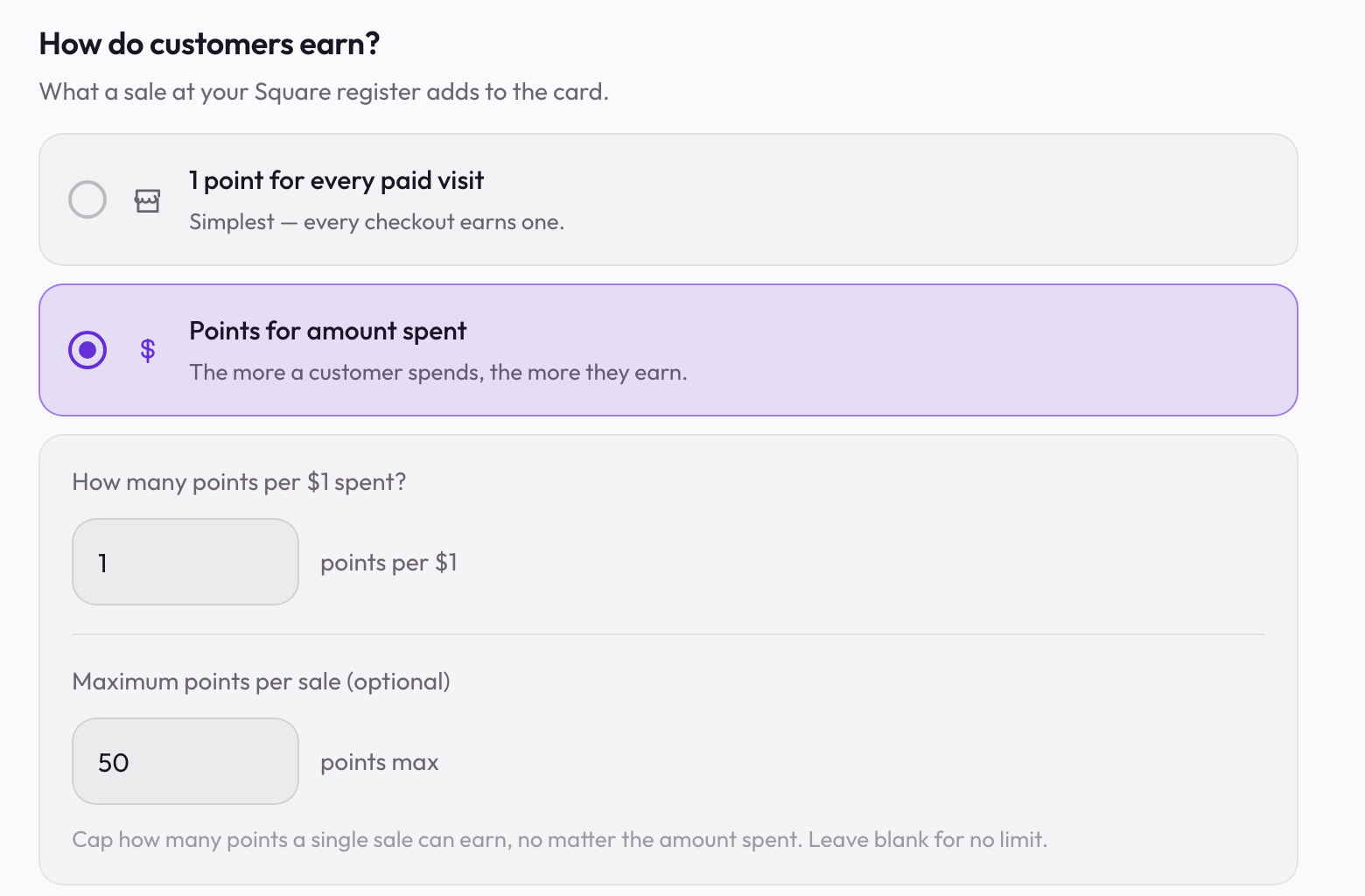
2. Choose how a sale earns:
- Per visit — one stamp or point for every paid visit (simplest).
- Per amount spent — the more a customer spends, the more they earn.
Click Save and your card starts earning from Square sales.
Step 3 — Your rewards list
Rewards aren't set up here — they live on your loyalty card or its points rule, the same place as everywhere else in Passtastic.
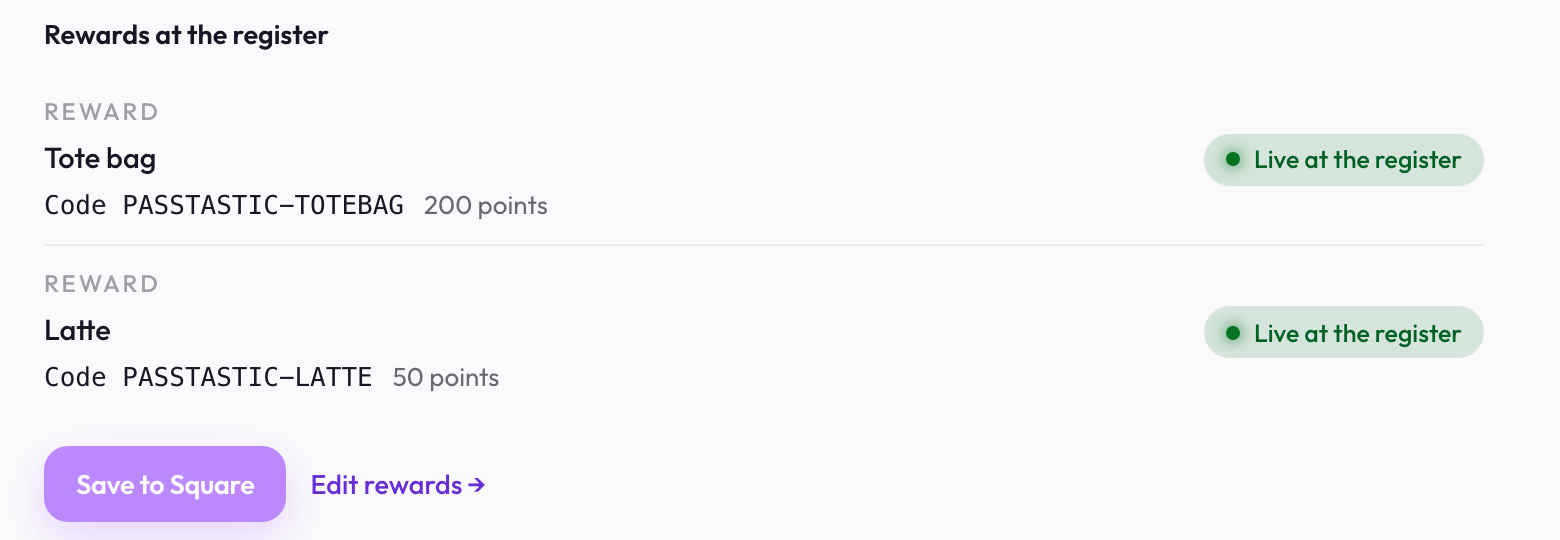
1. Every reward you've set on the card — stamp rewards, point rewards, and level perks — shows up in the Rewards at the register list on this page.
2. Press Save to Square and each reward is created in Square as a discount, named by its code. Change a reward on the card later and this page shows it's changed — press Save to Square again to push the update.
3. Level-card tier perks apply by themselves to items from your Square catalog. They don't apply to a custom-amount line your staff type in at the register.
4. New members are added to your Square customer list when they join Passtastic, unless they're already there. That's on by default — you can switch it off on this page, under Customer list.

How your staff earn a stamp or point
At checkout, your staff tap Add customer in Square and pick the customer by phone or email. That's what credits the stamp or points — no scanner needed to earn.
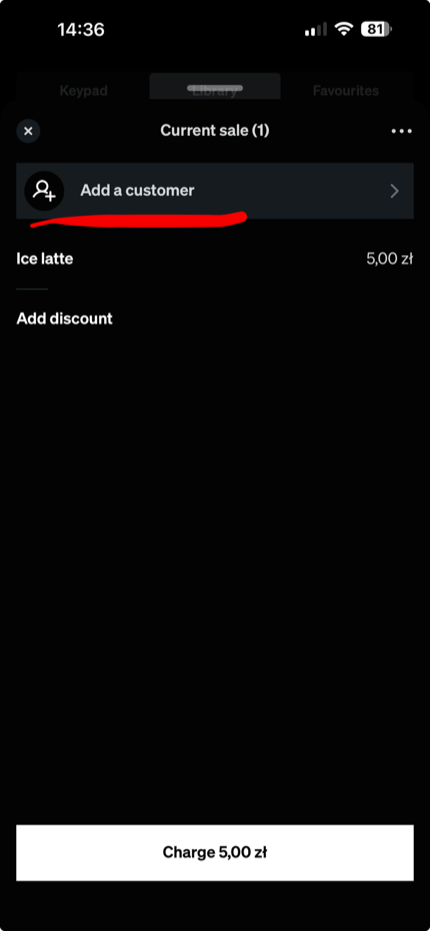
If a sale didn't earn, it's almost always because the customer wasn't added to the sale in Square. The customer has to be attached for loyalty to count.
How your staff redeem a reward
Square doesn't let us show a customer's reward status on the Square register, and a screenshot of a "full" card is easy to fake. So redeeming uses a quick scan:
1. When a customer asks for their reward, your staff open the Passtastic Scanner app and scan the customer's wallet pass. This confirms the reward is real and ready — not a reused screenshot.
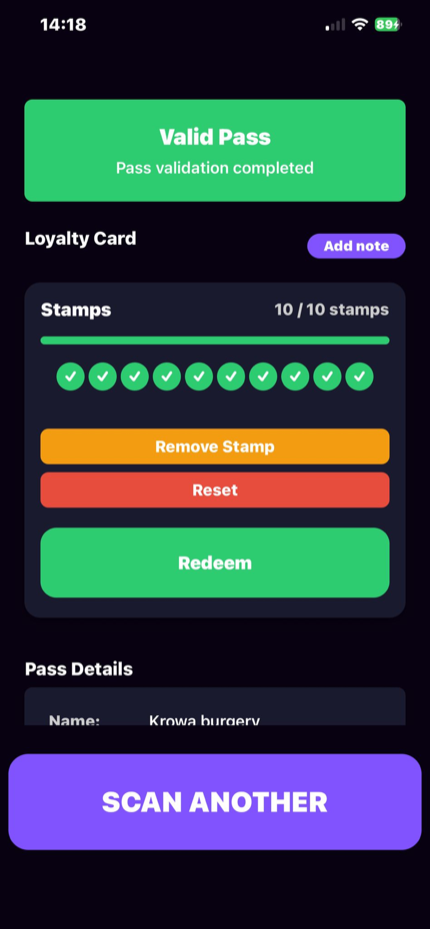
2. Your staff apply the discount named with the reward's code to the sale — for a free item, to that item's line. (That discount was created in Step 3, when you pressed Save to Square.)
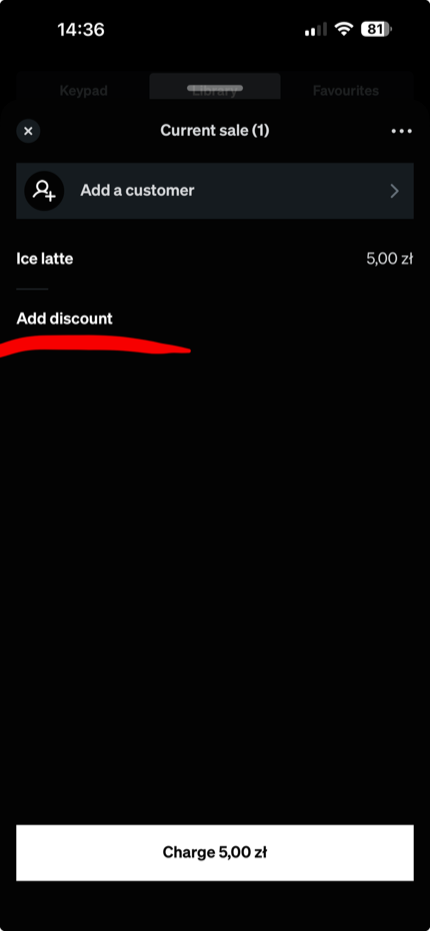
3. The reward's points come off.
That's the one place you still use the scanner — earning is automatic in Square.
Frequently asked questions
Do I need paid Square Loyalty?
A visit didn't earn — why?
Why do I still need the scanner to redeem?
Can I change the earn rate or reward later?
For running loyalty without a POS, or connecting other tools, see POS Systems & Integrations.
Overview for owners: Square POS integration.