

Connect Lightspeed POS
What you get
Connect your Lightspeed Retail X-Series account and your register does the loyalty work for you. Your staff ring up the sale the way they always do, with one small habit added: they put the customer on the sale. Passtastic sees the sale and updates the customer's card within about a minute, no separate device needed for earning.
The rewards work at the register too. Whatever you set on your card in Passtastic, a percentage for a level, a free product for points, a free item on a full stamp card, is ready at the checkout once you save it to Lightspeed. Set it once on the card; there is nothing separate to configure for Lightspeed.
Three things this looks like in real shops:
- A boutique with levels. Ana is a Silver member with 10% off. She buys a dress, the cashier adds her to the sale, and the 10% comes off by itself. She doesn't ask for anything and nothing is taken from her points. A level perk is a status benefit, not something she spends.
- A record store with points. María has 260 points and wants the poster, which costs 200. She asks; the cashier types the poster's code, `SPINDLE-POSTER`, and the poster comes off the sale, whatever it costs. A minute later her card shows 60 points, still enough for the photocard next time.
- A bookshop with a stamp card. Page & Co's card gives a free paperback at 10 stamps. With a full card, the customer picks a €14.90 novel, the cashier types `PAGECO-BOOK`, and the book is free, whatever its price. Her card resets and anything else she pays for that visit earns a stamp.
This integration is included on every Passtastic plan: Single Location, Multi-Location and Groups & Brands.
Which cards work
- Points and level cards earn by the points rule attached to the card, for example one point per euro. A card with no rule attached earns nothing until you set one up.
- Stamp cards earn one stamp per paid sale, nothing to set.
- Cards that start with a welcome coupon work too: from the first sale they earn as the stamp, points or level card they turn into.
- Other coupons, bundles and memberships don't earn from Lightspeed sales, so they don't appear in the list of cards you can turn on.
Before you start
- A Lightspeed Retail X-Series account with an admin login, so you can approve the connection. R-Series and K-Series are not supported.
- At least one published points, level or stamp card. If you don't have one, create it from Programs → New program.
- For points and level cards, a points rule attached.
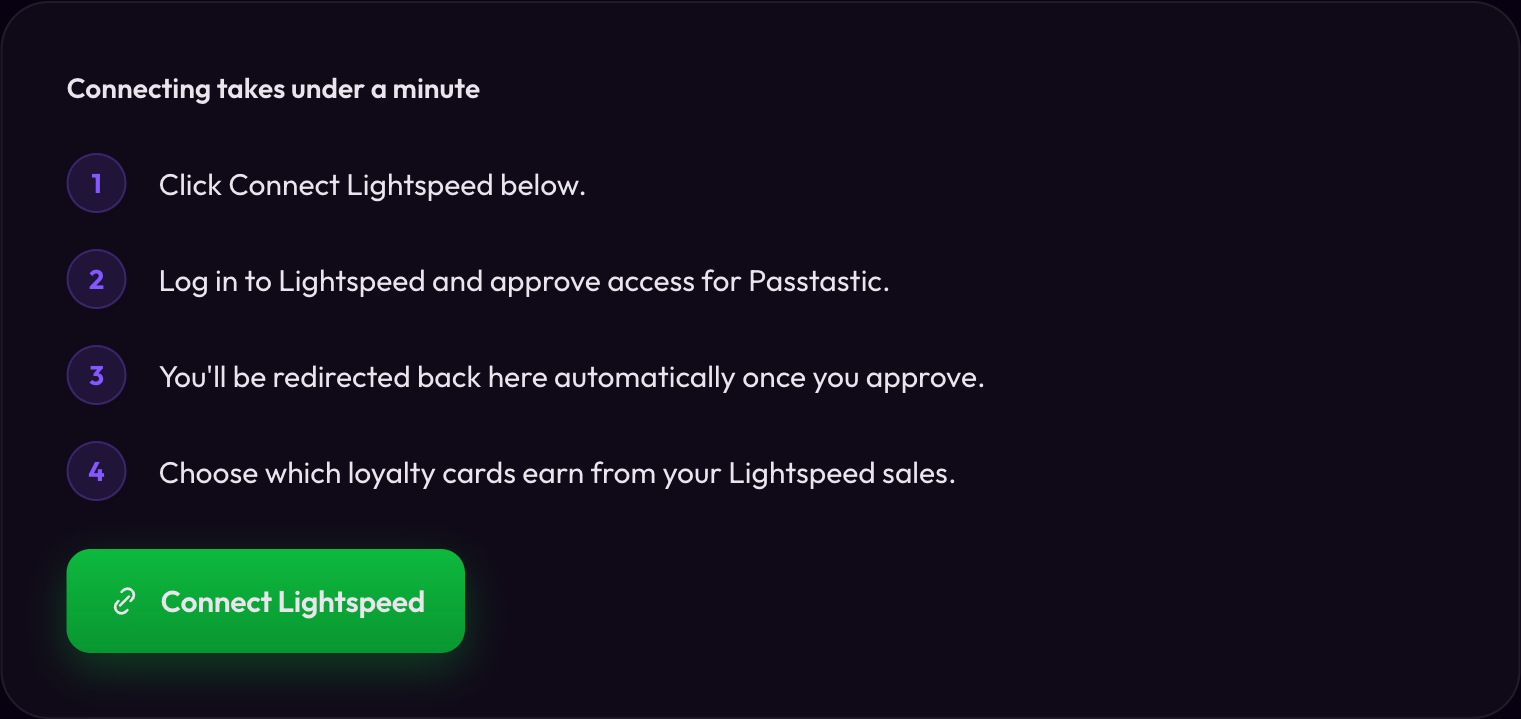
Step 1: Connect Lightspeed
1. In your Passtastic dashboard, open Settings, then Integrations (under Business), and find Lightspeed POS.
2. Click Connect Lightspeed.
3. Log in to Lightspeed and approve access for Passtastic.
Lightspeed's login screen may say Passtastic isn't approved by Lightspeed. That is expected: this is a private app, not one listed in Lightspeed's public app store, and Lightspeed shows that notice for every private app. Approve the installation to continue.
4. You are sent back to Passtastic automatically once you approve.
Step 2: Choose which cards earn
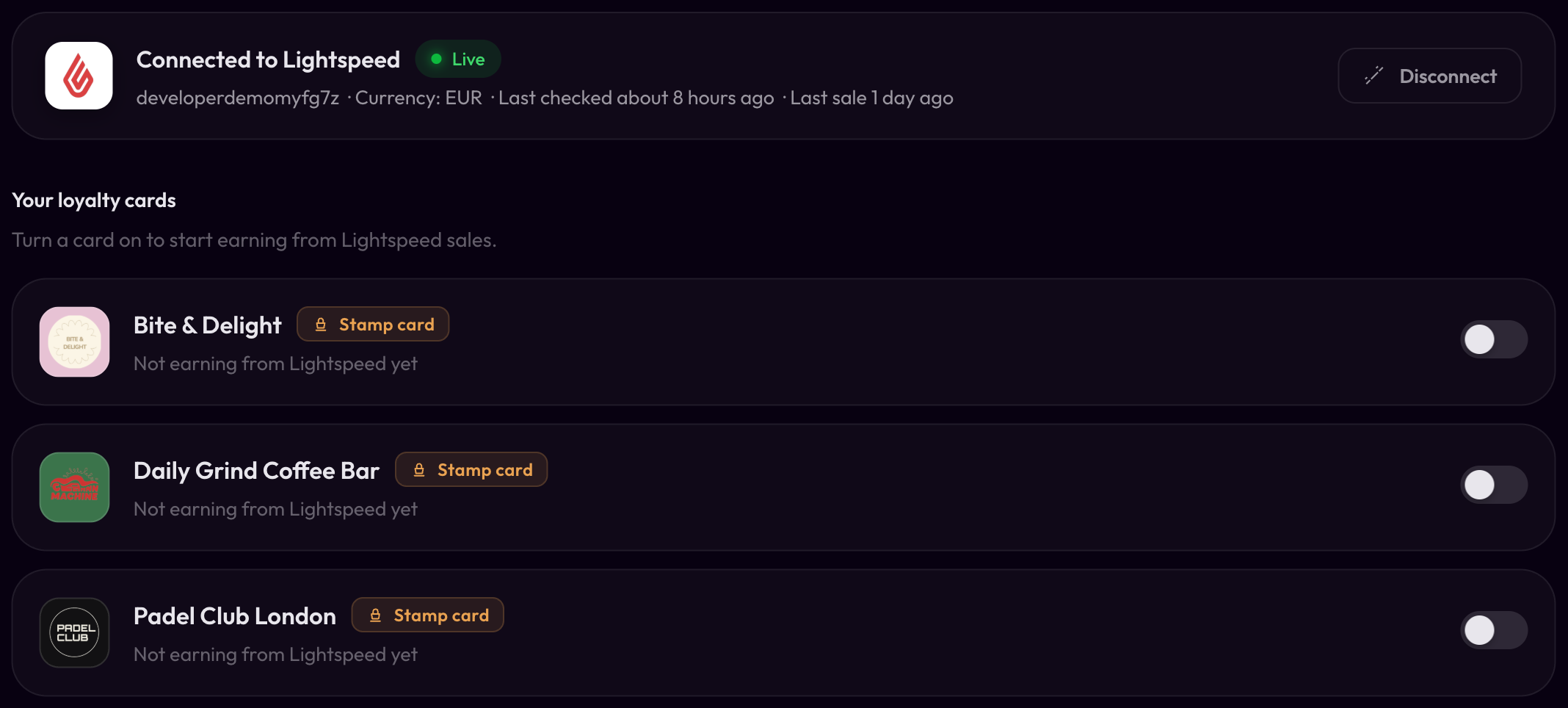
Once connected, you see Your loyalty cards: every points, level and stamp card in your account, including cards that start with a welcome coupon. Turn a card's toggle on to start earning from Lightspeed sales.
- For points and level cards, make sure a points rule is attached. If none is, use Set up your points rules on the same page.
- Stamp cards need nothing more: turning one on is enough. Until a card is on, the page shows an amber Connected · not earning chip.
Step 3: Save your rewards to Lightspeed
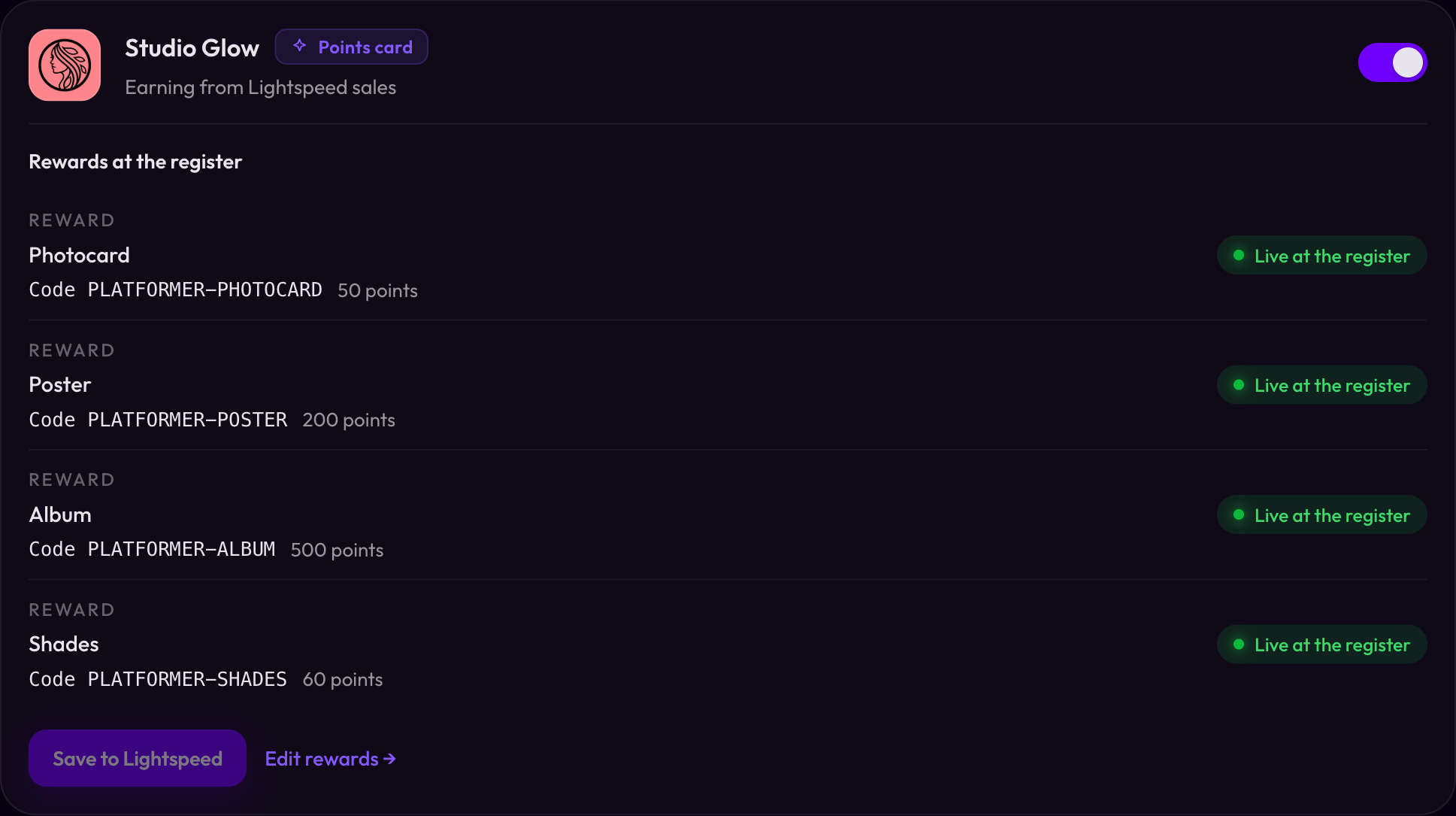
Your rewards live on your card, not on this page. Under each card you'll see Rewards at the register: one row per reward, with the code your staff will type and whether the register has it yet.
Where each row comes from:
- A level's % off at the register. Each level of a level card has a percentage field beside its text, labelled "% off at the register (optional)". It only appears once you've connected Lightspeed or Square — there's no register to apply it before then. Bronze 5, Silver 10, Gold 15: every customer in that level gets it on every sale, by itself.
- A reward on your points rule. Each item on the rule says what the register gives: Money off (an amount or a percentage) or Free product (you pick the product from your Lightspeed list, so a "free tee" is free in every size and colour). Items left as Staff handle it are not sent to the register; your staff take care of those the way they do today.
- A stamp card's reward. The card's own At the register choice, the same two options, for a full card.
- A welcome gift. On a card that starts with a welcome coupon, the At the counter choice under Welcome coupon on the card's Setup tab, the same two options. It shows as Welcome gift.
The free product has to be an item you already sell in Lightspeed. If it's new, add it there first — it then appears in the search when you pick it. Passtastic doesn't create or change your items: it adds a promotion in Lightspeed that makes that one item free. If you later delete or change the item in Lightspeed, pick it again and save.
Each row shows one of three states:
- Live at the register. Saved and ready.
- Not yet saved. Click Save to Lightspeed.
- Changed — save again. You edited the card since the last save, so the register still has the old version.
To change a reward, click Edit rewards (it takes you to the level, the points rule or the stamp card), then come back and Save to Lightspeed.
Registers pick up rewards when the Sell screen opens. After saving, reopen the Sell screen on each register once.
Welcome gift at the counter
If your card starts with a welcome coupon, staff can give the gift at the register.
1. On the program's Setup tab, under Welcome coupon, set At the counter to Money off or Free product. Leave it on Staff handle it to keep giving the gift with the Passtastic Scanner app.
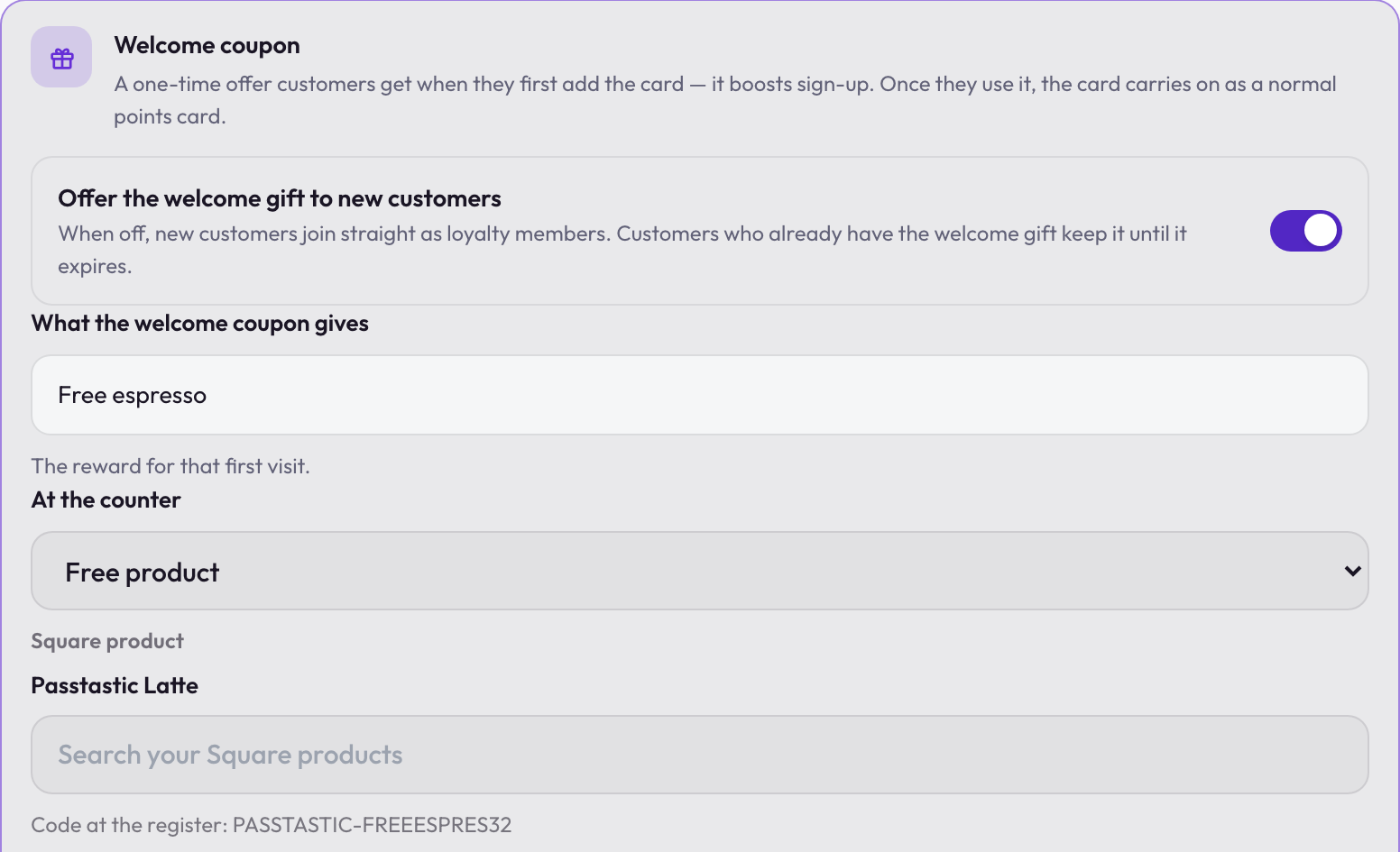
2. Come back here and press Save to Lightspeed, then reopen the Sell screen on each register once.
3. At the counter, staff add the customer to the sale, tap Promo code and type the welcome gift's code, shown in Rewards at the register. Lightspeed accepts it only for a customer who still has an unused gift.
The customer gets the gift, and the welcome coupon turns into the loyalty card. A sale the gift makes completely free earns nothing; anything else they buy earns as usual.
What your team does at the counter
The one habit: add the customer to the sale. In Lightspeed's Sell screen, search by name or phone and add the customer before closing the sale, the same way they'd add a customer for a receipt. That single step is what earns the stamp or the points. A walk-in sale with no customer on it earns nothing.
Rewards are used when the customer asks. The customer says they'd like their free book, or the poster for their points. The cashier adds them to the sale, taps Promo code, types the reward's code, and the discount line appears. If nobody types the code, nothing is deducted and the customer keeps their reward for another day. If the code is typed for a customer whose card isn't ready, Lightspeed refuses it. The codes belong to your shop, so share them with staff only.
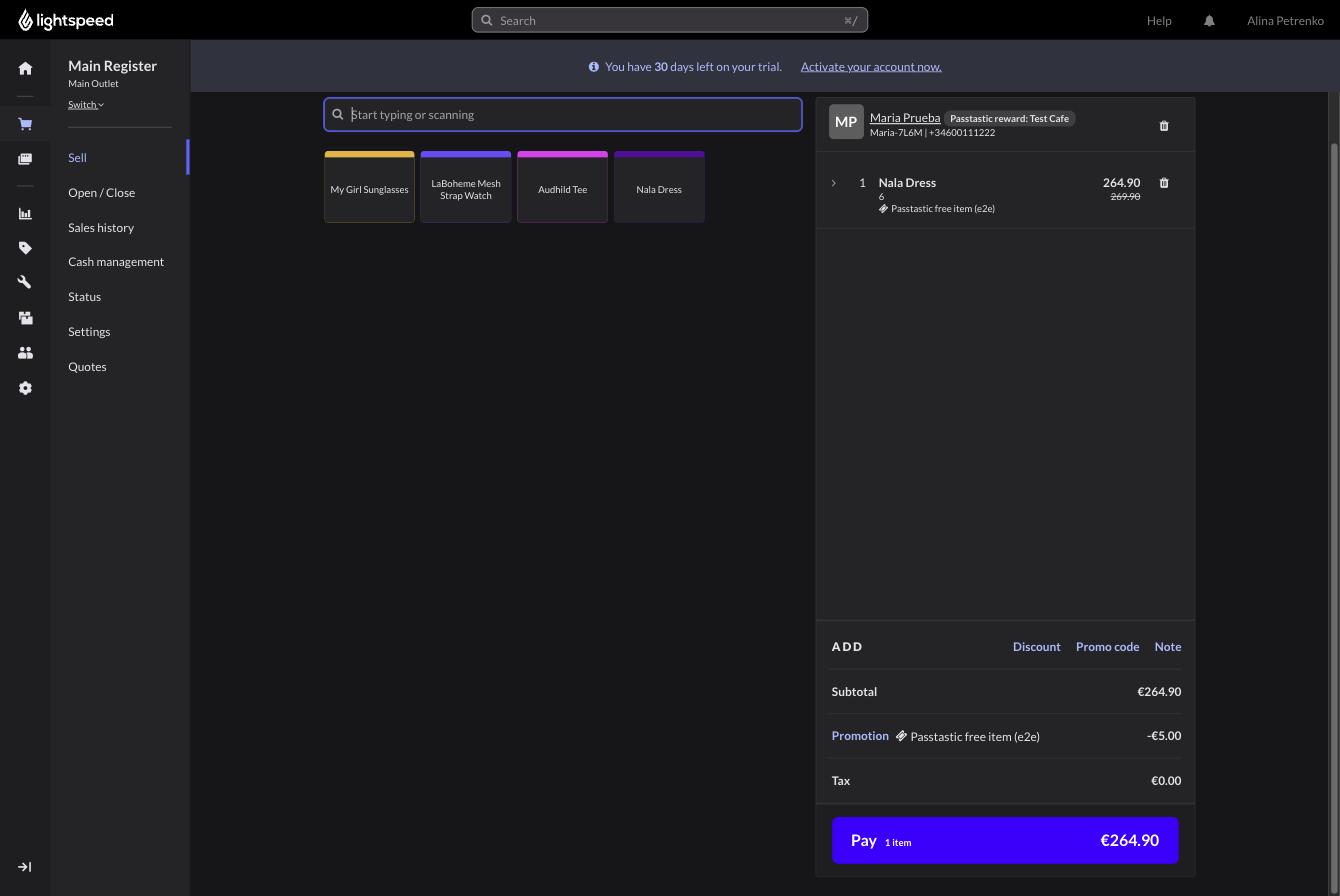
Level perks need nothing. A percentage set on a level applies by itself to every customer in that level, on every sale. It doesn't count as "using a reward".
The Passtastic Scanner app keeps working as before, if your team would rather confirm a reward with a quick scan; it shows the same rewards and codes after a scan.
Frequently asked questions
Does the free item earn a stamp?
Can a customer use two rewards in one sale?
What if we run our own promotion in Lightspeed on the same item?
What happens when a sale is voided?
What happens when a customer returns one item?
Does a full card stay ready forever?
What if the customer paid with a different email or phone than the one on their card?
Your members in your Lightspeed customer list
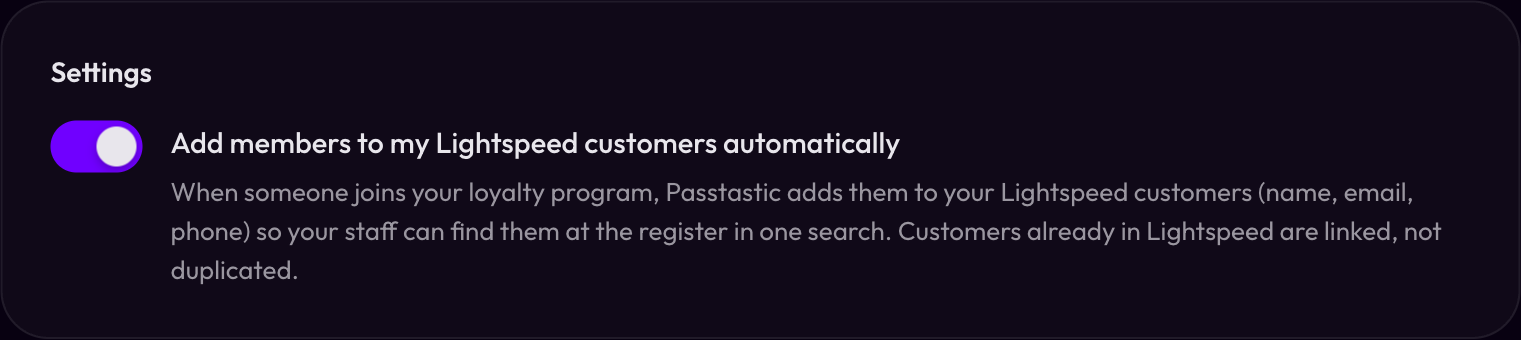
In Settings, the toggle Add members to my Lightspeed customers automatically decides whether Passtastic writes new loyalty members into Lightspeed's own customer list.
When it's on, joining your program adds the customer's name, email and phone to Lightspeed, so your staff find them at the register with one search. A customer who already exists in Lightspeed is linked, not duplicated.
Troubleshooting
Nothing earns, and the page says Connected · not earning. No card is switched on. Turn a card's toggle on under Your loyalty cards. If a sale came in meanwhile, the page shows that sale's date: it earned nothing, and it isn't added later.
A banner says my connection needs renewing. Your Lightspeed connection expired or was revoked. Click Reconnect Lightspeed on the integration page and approve access again. Your cards and rewards are kept.
The reward didn't appear at the register. Three usual causes: the register hasn't picked up a reward saved after its Sell screen was last opened (reopen it once); the customer wasn't added to the sale; or the customer's card doesn't have enough points or stamps for that reward yet.
Points or stamps didn't arrive. Most often the customer wasn't on the sale. It can also be timing: allow about a minute after the sale. If it still hasn't arrived, check Last checked on the integration page to confirm Passtastic is still reading your Lightspeed sales.
For running loyalty without a POS, or connecting other tools, see POS Systems & Integrations.