

Configure Zapier in Passtastic
Open the Integrations page
1. Log in to your Passtastic dashboard.
2. Open Settings, then click Integrations (under Business).
3. Select the loyalty card you want to connect to Zapier.
4. Click Configure Zapier.
Enable Zapier and paste your URL
1. Toggle Enable Zapier webhooks to on.
2. Paste the webhook URL you copied from Zapier into the Webhook URL field.
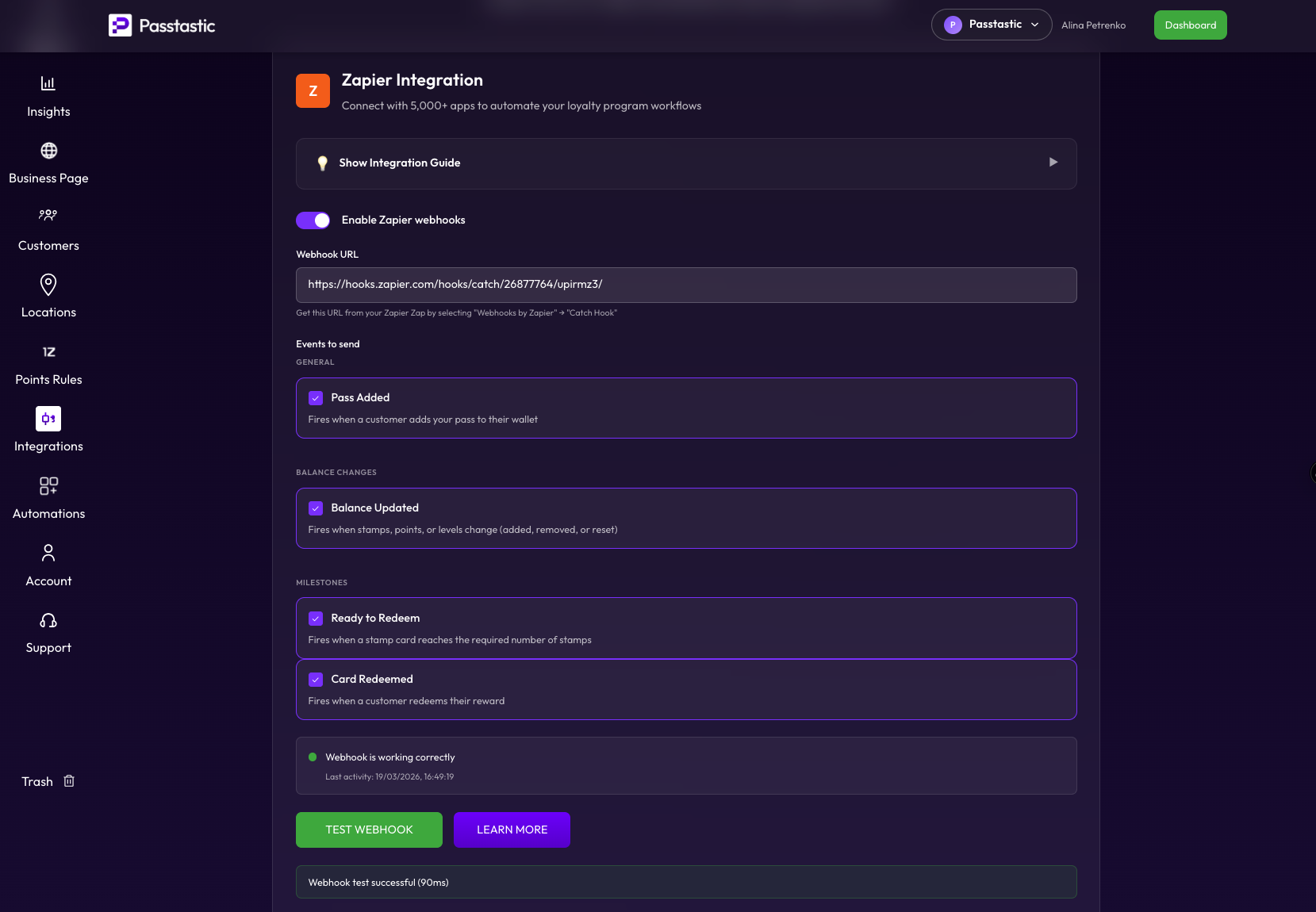
Make sure the URL starts with `https://hooks.zapier.com/`. If it looks different, go back to Zapier and copy it again.
Test the connection
1. Click Send test at the bottom of the page.
2. Make sure the test is successful — you should see a green confirmation message. This means Passtastic can reach your Zapier webhook.
If the test fails, double-check that the webhook URL is correct and that your Zapier Zap is still open in draft mode.